Frequently Asked Question
Server Mode is ITVDesk's Windows broker-service mode for deployments where the virtual IP camera must remain available for VMS/NVR systems while local users, Remote Desktop (RDP) sessions, or Windows sessions change.
In Standard Mode, ITVDesk runs in the current Windows user session. In Server Mode, the ITVDesk Broker Service owns the ONVIF, RTSP, RTSPS, and related network services, while a session agent supplies desktop frames from the active local or RDP session. The user interface is no longer required to keep the configured camera endpoint available.
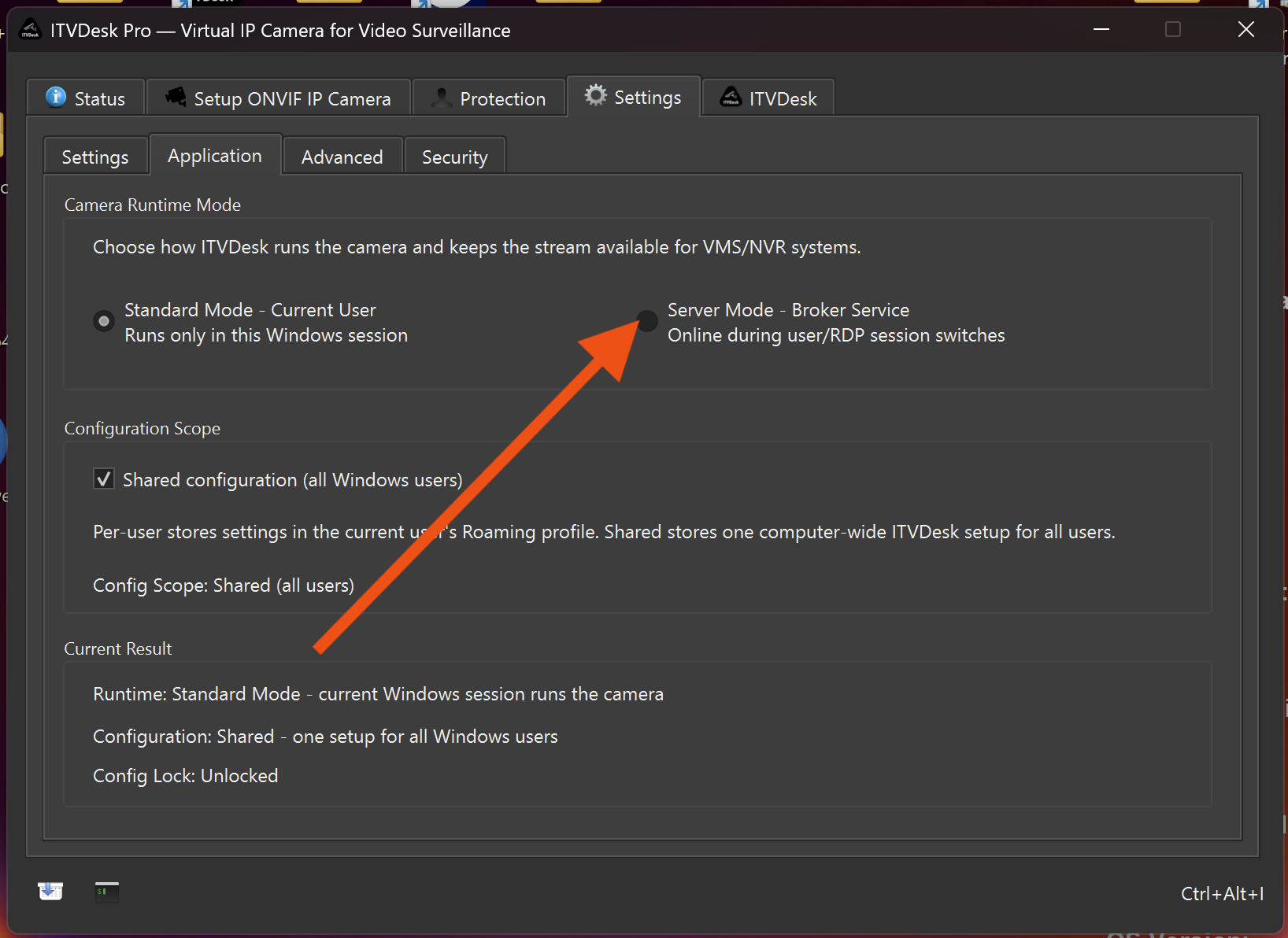
What Server Mode enables
- One stable ITVDesk ONVIF/RTSP camera endpoint for the connected VMS, NVR, XVR, DVR, or RTSP client.
- Background broker operation without keeping the ITVDesk user interface open.
- Better continuity for shared workstations, server deployments, control rooms, and systems managed through RDP.
- Session-aware desktop capture: the broker can follow the active local or RDP Windows session for the configured camera URL.
- Shared, computer-wide ITVDesk configuration for all Windows users on that computer.
When to use it
- The computer is used by more than one Windows user.
- An administrator regularly connects through RDP while the VMS/NVR must keep the same ITVDesk camera URL.
- The computer is dedicated to monitoring, recording, POS, HMI/SCADA, control room, or other unattended video workflows.
- You need the configured network services to remain available after the normal ITVDesk UI has been closed.
Requirements and important behavior
- Server Mode is available on Windows and requires a full ITVDesk license. Trial licenses use Standard Mode only.
- Administrator approval is required because ITVDesk installs and starts the Windows Broker Service.
- Server Mode requires Shared configuration. ITVDesk enables and locks this setting because the camera setup must be consistent for all users.
- The default model is one configured camera URL that follows the active session. Server Mode does not create a separate ONVIF/RTSP URL for every Windows user session.
- Configuration changes that affect broker runtime can require a Broker Service reload or restart before they are active.
How to enable Server Mode
- Open ITVDesk with a full license activated.
- Open Settings, then the Application tab.
- Under Camera Runtime Mode, select Server Mode - Broker Service.
- Confirm the Windows administrator/UAC prompt so ITVDesk can install and start the Broker Service.
- ITVDesk closes the current UI session so the new runtime mode can be applied safely.
- Verify the same configured ONVIF, RTSP, or RTSPS endpoint from the VMS/NVR or a test client.
RDP and NO VIDEO behavior
Server Mode keeps the network camera endpoint available while session ownership changes. It does not force Windows to generate desktop frames when an RDP desktop is unavailable.
Starting with ITVDesk v10.3, desktop capture running inside an RDP session can show a NO VIDEO fallback when the session disconnects or when Windows stops providing valid desktop frames. When frames return, ITVDesk automatically restores the live desktop stream. This behavior is available for RDP desktop capture in both Standard Mode and Server Mode.
For the RDP registry option, limits, and NO VIDEO details, see RDP minimized or disconnected: desktop stream stops or shows No Video Frame.
How to test Server Mode
You can perform a useful first test with VLC even if you do not currently have an RDP environment. This confirms that the Broker Service owns the stream endpoint and that the stream remains reachable without the normal UI process.
- In Standard Mode, configure a desktop source and confirm that the stream works in ITVDesk preview and VLC.
- Copy the configured RTSP or RTSPS URL from ITVDesk. Use the actual port and URL shown by your camera configuration.
- Enable Server Mode and approve the administrator prompt.
- After the ITVDesk UI closes, open the copied URL in VLC from another computer on the same network, or from the local computer where appropriate.
- Confirm that live video remains available and that the VMS/NVR can reconnect to the same URL.
This validates the Broker Service and stable network endpoint. It does not validate RDP session switching or RDP NO VIDEO fallback. For that test, use a second Windows computer to open mstsc.exe, connect to the ITVDesk computer, monitor the stream from VLC or the VMS/NVR, then test RDP minimize, reconnect, and session-change behavior.
Returning to Standard Mode
Open ITVDesk, go to Settings > Application, select Standard Mode - Current User, and confirm the change. ITVDesk stops the Broker Service and returns to classic per-session operation. Switch to Standard Mode first if you need private per-user configuration instead of the shared computer-wide setup.
Troubleshooting
- Server Mode is unavailable: confirm that you are using Windows and that a full license is active.
- The broker does not start: run ITVDesk from a local installed path, approve the administrator prompt, and check that Windows security policy allows the ITVDesk service.