Frequently Asked Question
Application Window streaming is used when you want ITVDesk to stream one selected application window instead of the whole desktop screen. ITVDesk publishes the selected window as a channel inside an ONVIF virtual IP camera, so the VMS/NVR can view, record, and manage it like a normal camera stream.
This is useful for POS applications, control room dashboards, operator tools, HMI/SCADA screens, browser-based panels, monitoring applications, or any workflow where you need to record one application without exposing the entire desktop.
When to use Application Window streaming
- You want to stream only one application window instead of the full monitor.
- You need a cleaner VMS/NVR recording without desktop icons, taskbar, notifications, or other private content.
- You want each selected application window to have its own ITVDesk channel or stream.
- You want to record business software, POS, dashboards, operator consoles, browser windows, or internal tools as ONVIF video.
How to configure it
- Open ITVDesk and create or edit an ONVIF IP camera.
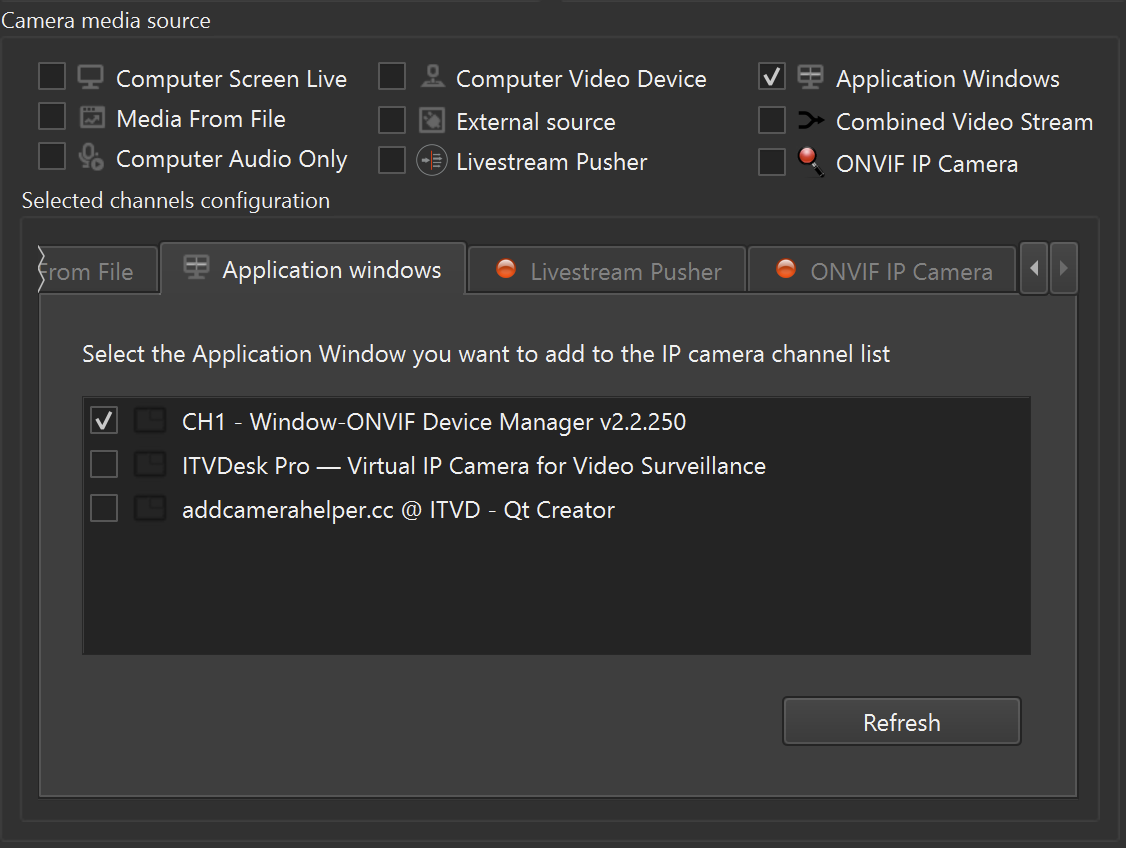
- In Camera media source, enable Application Windows.
- Open the Application windows tab in the selected channels configuration area.
- Select the application window you want to add to the IP camera channel list.
- If the window is not visible in the list, open the application normally and click Refresh.
- Save the configuration and start the ITVDesk camera.
- Add ITVDesk to your VMS/NVR through ONVIF, or use the direct RTSP/RTSPS/SRT stream URL if your system uses manual stream input.
What to expect
- If the application window is resized or maximized, ITVDesk updates the stream size automatically.
- If the application is closed and opened again, ITVDesk can resume streaming when the same application window appears again.
- If the selected window is hidden, closed, or temporarily unavailable, ITVDesk may show a No Video Frame state until the window becomes available again.
- You can create more than one Application Window stream. Each selected application window can have its own ITVDesk channel.
- If you want to stream several browser pages, open each page in a separate browser window. Browser tabs are not treated as separate application windows.
Multiple application windows
ITVDesk can create multiple streams from different application windows. For example, one ITVDesk virtual camera can include a POS window, a dashboard window, and a browser window as separate channels, depending on your license and VMS/NVR channel capacity.
Remember that VMS/NVR systems may count every channel or camera stream against their own channel license limits. If you are deploying several application windows, verify the channel count and recording load on the VMS/NVR side.
VMS/NVR integration notes
- Use ONVIF discovery or manual ONVIF add when the VMS/NVR supports ONVIF virtual cameras.
- Use RTSP, RTSPS, or SRT stream URLs when the VMS/NVR or client is configured for direct stream input.
- If the stream resolution changes because the application window was resized, some VMS/NVR systems may need a short reconnect or profile refresh.
- For production deployments, test the exact application window, codec, FPS, bitrate, and channel layout before final recording configuration.
Troubleshooting
- The application is not listed: open the application window normally, make sure it is not minimized, and click Refresh.
- The stream shows No Video Frame: restore or reopen the selected application window and confirm that the same window title appears again.
- Browser tab is not separate: move the page into a separate browser window, then refresh the Application Windows list.
- Protected or special windows: some security-protected, elevated, DRM, or hardware-overlay windows may restrict capture. Test with the target application before production use.
- VMS/NVR does not update after resize: restart the channel or refresh the ONVIF/RTSP profile in the VMS/NVR.
Related articles
- Add an RTSP, SRT, RTSPS, or ONVIF source and expose it as an ONVIF virtual camera
- Retrieve direct RTSP, RTSPS, or SRT stream URLs
- Adjust Video Quality Settings: resolution, profile, FPS, GOP and bitrate
- Manual resolution, 4K, transcoding, transmuxing, and transrating
- VMS/NVR can't detect ITVDesk or live video from ITVDesk is not coming