Frequently Asked Question
The ITVDesk Motion Event API allows an authenticated external system to manually set the ONVIF Motion state for a specific ITVDesk IPCam channel. This is useful when a business application, AI detector, sensor, access-control workflow, automation script, or external monitoring system needs to trigger a motion event inside a VMS/NVR through ITVDesk.
Availability: This API call is supported from ITVDesk 10.3 and newer versions.
When to use this API
- An external AI or object-detection system needs to raise a VMS/NVR motion event.
- A POS, kiosk, access-control, industrial, or automation application needs to mark activity inside the video system.
- A panic button, software button, or integration script should trigger recording, bookmarks, alerts, or event rules in the VMS/NVR.
- You want event control through ITVDesk without opening a new network service or custom port.
Requirements
- Open ITVDesk and select the required IPCam / channel.
- Enable Event detection for the channel.
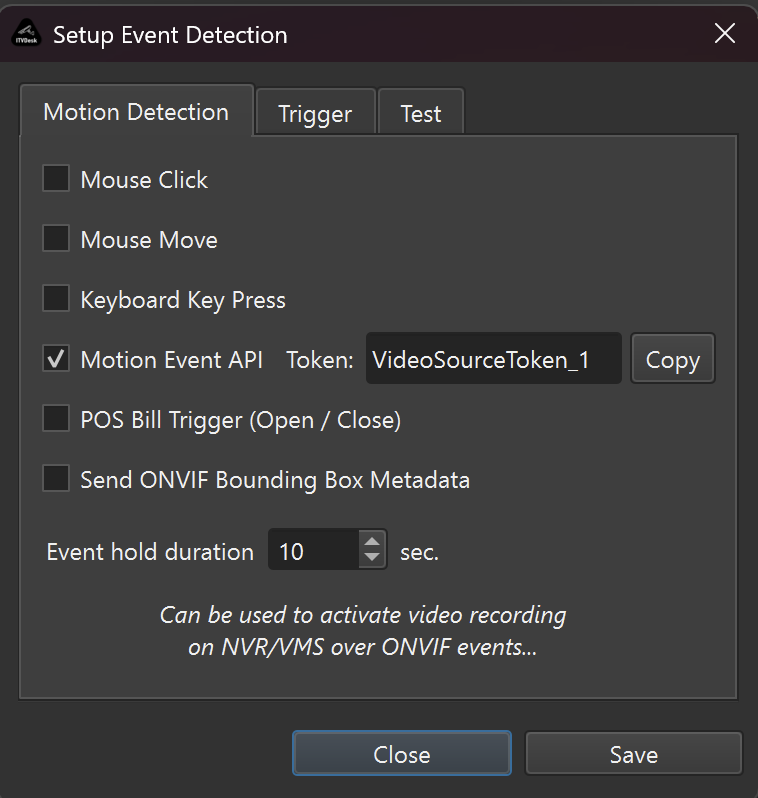
- Open Event Detection settings and enable Motion Event API.
- Copy the Video Source Token shown next to the Motion Event API option.
- Use the ONVIF username and password configured for that ITVDesk IPCam.
API endpoint
The Motion Event API uses the existing ITVDesk IPCam HTTP/HTTPS service. It does not require a separate API port.
POST http://ITVDESK_IP:ONVIF_PORT/api/events/motion
POST https://ITVDESK_IP:ONVIF_HTTPS_PORT/api/events/motion
Authentication and security
- Authentication uses HTTP Digest with the existing ITVDesk IPCam ONVIF username and password.
- Use HTTPS when the API is accessed outside a trusted LAN or protected network.
- The API is available only for the receiving ITVDesk IPCam and the channel token hosted by that IPCam.
- If Motion Event API is disabled for the channel, the request is rejected.
Request body
Send JSON with the channel Video Source Token and the required motion state.
{
  "token": "VideoSourceToken_1",
  "state": true
}| Field | Description |
|---|---|
token |
Video Source Token displayed in ITVDesk Event Detection settings. |
state |
JSON boolean. true starts motion. false ends motion. |
state must be a JSON boolean without quotes. The strings "true" and "false" are rejected. Event hold duration does not automatically reset an API event, so the integration must send state=false when the motion condition ends.
Copy button and quick test
When Motion Event API is enabled, ITVDesk displays the channel token and a Copy button. The Copy button generates a ready-to-run curl command for the selected ITVDesk IPCam, ONVIF port, username, and token.
The generated command can trigger motion, wait a few seconds, and then clear the motion state. Replace the IP address, port, username, and password with your actual ITVDesk IPCam values when testing manually.
curl --digest --user 'admin:password' \
  --header 'Content-Type: application/json' \
  --data '{"state":true,"token":"VideoSourceToken_1"}' \
  'http://10.211.55.10:7000/api/events/motion'; \
sleep 5; \
curl --digest --user 'admin:password' \
  --header 'Content-Type: application/json' \
  --data '{"state":false,"token":"VideoSourceToken_1"}' \
  'http://10.211.55.10:7000/api/events/motion'
A successful test is visible in the ITVDesk log. The first request sets motion to active, and the second request clears it:
[2026-07-12 15:52:26] : [INFO] Onvif Event::Motion trigger source=motion_api state=1
[2026-07-12 15:52:26] : [INFO] [MOTION-API] camera=1 token=VideoSourceToken_1 state=1 changed=1
[2026-07-12 15:52:31] : [INFO] Onvif Event::Motion trigger source=motion_api state=0
[2026-07-12 15:52:31] : [INFO] [MOTION-API] camera=1 token=VideoSourceToken_1 state=0 changed=1
curl examples
Start motion:
curl --digest -u "admin:password" \
  -H "Content-Type: application/json" \
  -d '{"token":"VideoSourceToken_1","state":true}' \
  "http://192.168.1.20:7000/api/events/motion"
End motion:
curl --digest -u "admin:password" \
  -H "Content-Type: application/json" \
  -d '{"token":"VideoSourceToken_1","state":false}' \
  "http://192.168.1.20:7000/api/events/motion"
Successful response
{
  "ok": true,
  "event": "motion",
  "token": "VideoSourceToken_1",
  "state": true,
  "changed": true
}
Sending the same state again is safe. ITVDesk returns changed=false and does not send a duplicate ONVIF event.
Common HTTP responses
| Code | Meaning |
|---|---|
| 200 | Motion state accepted. |
| 400 | Missing fields, invalid JSON, or state is not a boolean. |
| 401 | Missing or invalid ONVIF Digest login. |
| 403 | Motion Event API is disabled for the channel. |
| 404 | Video Source Token does not belong to this ITVDesk IPCam. |
| 409 | Event detection is disabled for the channel. |
| 405 | Only POST is supported. |
| 413 | Request body is larger than 2048 bytes. |
| 415 | Content-Type is not application/json. |
| 503 | ITVDesk IPCam is stopping, restarting, or unavailable. |
Postman setup
- Select POST and enter the endpoint URL.
- Under Authorization, select Digest Auth.
- Enter the ITVDesk IPCam ONVIF username and password.
- Under Body, select raw and JSON.
- Send
{"token":"VideoSourceToken_1","state":true}to start motion. - Send
{"token":"VideoSourceToken_1","state":false}when the motion condition ends.
Important notes
- The API opens no new port and uses the existing ITVDesk ONVIF/Web HTTP or HTTPS service.
- MainStream, SubStream, and P2PStream profiles of one channel share the same Video Source Token and produce one ONVIF Motion event.
- A token can target only a channel hosted by the ITVDesk IPCam receiving the request.
- Disabling Motion Event API leaves POS and all other ITVDesk event sources unchanged.